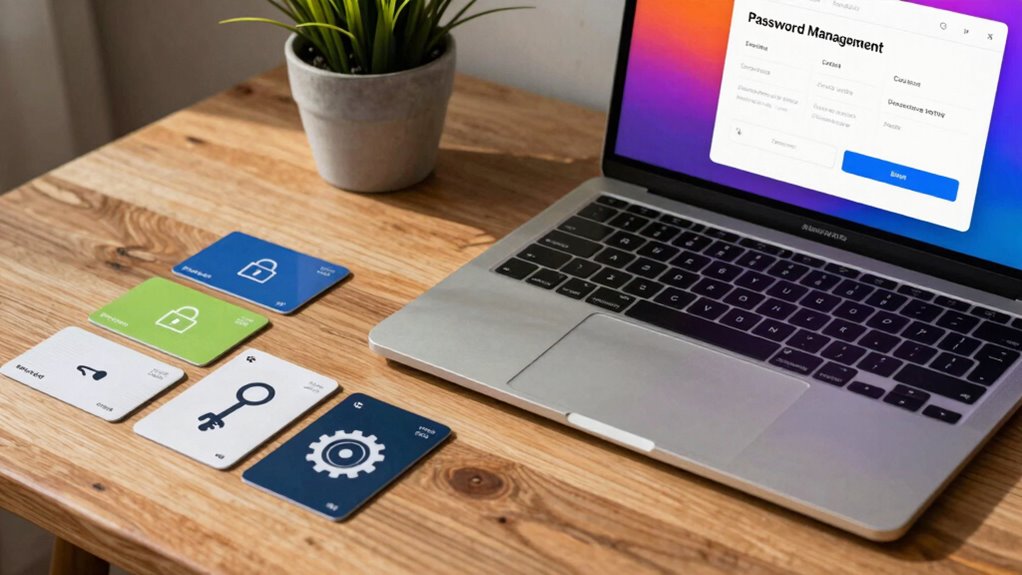

To build a safer password system without making life miserable, use a password manager to securely store unique, complex passwords for each account with just one strong master password. Enable two-factor authentication on your most important accounts for extra security, preferably with app-based codes. Regularly update your passwords and avoid reusing them across sites. By following these simple steps, you’ll greatly reduce your risk without adding hassle, and there’s more to discover for enhanced protection.

Get school and study supplies delivered free — and shop member deals
- Fast, free delivery on millions of items
- Access to Prime Big Deal Days deals on October 6–7
- Prime Video, Amazon Music and more included
Key Takeaways
- Use a reputable password manager to generate and store complex passwords securely.
- Enable two-factor authentication on all critical accounts for added security.
- Create unique, strong passwords for each account, avoiding reuse across sites.
- Regularly update passwords and review security settings to stay protected.
- Prefer app-based 2FA over SMS for convenience and higher security.
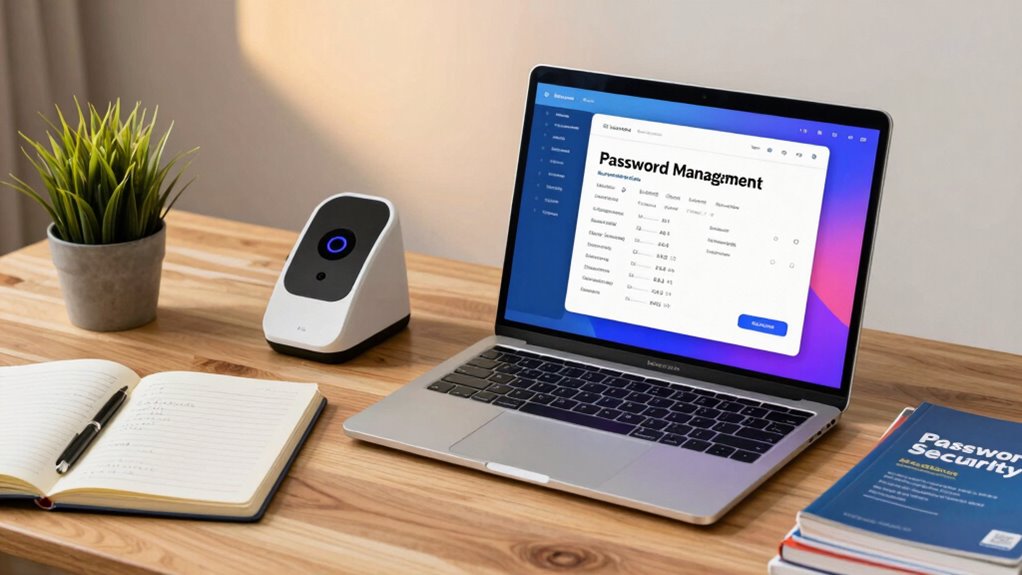
In today’s digital world, protecting your accounts starts with building a stronger password system. You don’t have to memorize dozens of complex passwords or settle for simple, easily guessable ones. Instead, consider using a password manager. These tools securely store your passwords, so you only need to remember one strong master password. With a password manager, creating unique passwords for every account becomes effortless, reducing the risk that a single compromised password jeopardizes multiple accounts. It also streamlines your login process, saving you time and frustration.
Using a password manager simplifies creating and storing unique, strong passwords for all your accounts.
But a strong password isn’t enough on its own. You should also enable two-factor authentication (2FA) wherever possible. This adds an extra layer of security by requiring a second form of verification—like a one-time code sent to your phone or generated by an app—beyond just your password. Even if someone manages to steal your password, 2FA makes it significantly harder for them to access your account. It’s a simple step that dramatically enhances your security without creating much inconvenience.
To build a safer password system, start by reviewing your current passwords. Use your password manager to generate and store complex, unique passwords for each of your accounts. Avoid using the same password across multiple sites, as that’s a major vulnerability. When creating passwords, aim for a mix of uppercase and lowercase letters, numbers, and special characters, making them difficult for hackers to crack. Your password manager can do this automatically, so you don’t have to think of complex combinations on your own.
Next, take advantage of 2FA on your most sensitive accounts—email, banking, and social media, for example. Many services support apps like Google Authenticator or Authy, which generate time-sensitive codes that are easy to use but hard for intruders to bypass. If a service offers SMS-based 2FA, enable it, but know that app-based solutions are generally more secure. Once set up, you’ll notice that even if someone steals your password, they won’t be able to access your account without the second verification step. Additionally, understanding password security and how to improve it can greatly reduce your vulnerability to cyber threats. Incorporating knowledge about encryption and best practices can further fortify your defenses against cyber attacks.
best password manager for Windows
As an affiliate, we earn on qualifying purchases.
As an affiliate, we earn on qualifying purchases.
Frequently Asked Questions
How Often Should I Change My Passwords?
You should change your passwords regularly, ideally every three to six months, to maintain security. Incorporate password rotation into your routine and stay alert to security reminders from your providers. If you notice any suspicious activity or a breach, update your passwords immediately. Regular updates help prevent unauthorized access, but avoid overly frequent changes that can lead to weaker passwords. Balance security with practicality for the best protection.
Can Password Managers Be Secure?
Like Pandora’s box, password managers hold immense potential if used wisely. Yes, they can be secure, especially when they incorporate biometric authentication and undergo regular security audits. These measures help protect your stored passwords from hackers. Just remember, no system’s infallible—so choose a reputable manager, enable multi-factor authentication, and stay vigilant. With these steps, you’ll turn your digital vault into a fortress, not a Pandora’s box.
What Is Two-Factor Authentication?
Two-factor authentication (2FA) adds an extra layer of security by requiring you to verify your identity with two methods. Typically, you input your password and then confirm with biometric verification, like fingerprint or facial recognition, or use hardware tokens that generate unique codes. This way, even if someone steals your password, they can’t access your account without the second factor, making your online security much stronger without too much hassle.
Are Passphrases Better Than Passwords?
A passphrase is better than a password because it balances strength and memorability—think of it as a fortress built with memorable stones. While password complexity can make passwords more secure, memorability challenges often lead to unsafe habits like reuse. Passphrases, typically longer and easier to remember, boost security without sacrificing convenience. They’re your secret code that’s tough for others to crack but simple for you to recall.
How Do I Recover a Lost Password Securely?
To recover a lost password securely, start by using the account recovery options provided by the service, like email verification or security questions. Follow the password reset procedures carefully, ensuring you create a strong, unique new password. Avoid sharing your reset details, and enable two-factor authentication if available. Always verify you’re on the official site to prevent phishing scams, keeping your account safe throughout the recovery process.
app-based two-factor authentication device
As an affiliate, we earn on qualifying purchases.
As an affiliate, we earn on qualifying purchases.
Conclusion
Remember, creating a safer password system doesn’t mean sacrificing convenience. By using passphrases, password managers, and two-factor authentication, you can stay secure without the hassle. Some might think it’s too complicated or time-consuming, but once you get into the habit, it’s quick and effortless. Protecting your online life is worth a few extra steps—think of it as building a strong shield that keeps your digital world safe, hassle-free.
As an affiliate, we earn on qualifying purchases.
As an affiliate, we earn on qualifying purchases.
Fall Picks
fall essentials
As an affiliate, we earn on qualifying purchases.