OLED monitor burn-in happens when static images stay on your screen too long, causing permanent ghost images or “image retention.” To reduce this risk, avoid displaying static content for extended periods, use screen savers, enable pixel-shifting features, and keep brightness moderate. Proper calibration and regular content changes help even out pixel wear. If you want to prevent long-term damage, understanding these tips can make a difference, and more details follow to help you protect your display.

Prime made for students and young adults
- Fast, free delivery for dorm and study essentials
- Prime Video and Amazon Music included
- Member-only deals
Key Takeaways
- Burn-in occurs when static images are displayed for extended periods, causing permanent pixel degradation on OLED screens.
- Image retention is temporary; burn-in is permanent and results from uneven pixel wear over time.
- Proper screen calibration, including moderate brightness, helps prevent burn-in and prolongs OLED lifespan.
- Using screen savers, pixel shifting, and avoiding static images in the same position reduce burn-in risk.
- Regularly adjusting display settings and spreading pixel usage can significantly extend your OLED monitor’s longevity.
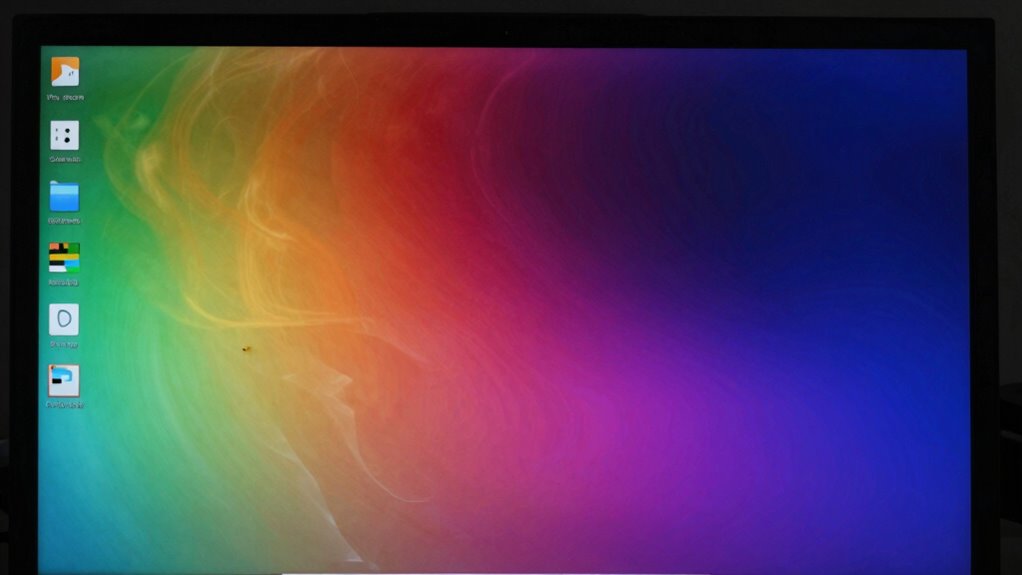
OLED monitor burn-in occurs when static images are displayed for extended periods, causing persistent ghost images on the screen. This phenomenon happens because the organic compounds in OLED pixels degrade unevenly when certain areas of the screen display the same image over time. The result is a faint, lingering shadow or “ghost” of the previous image that doesn’t go away, even after you switch to new content. To prevent this, it’s essential to understand how image retention contributes to burn-in and how proper screen calibration can help.
Image retention is a temporary version of burn-in, where a faint after-image stays on the screen but can usually be remedied with simple measures. However, if static images remain for too long, the damage becomes permanent, leading to true burn-in. Screen calibration plays a critical role here; it involves adjusting your display’s brightness, contrast, and color settings to minimize stress on the pixels. Keeping the brightness at a moderate level reduces the risk of pixel degradation, especially in areas that frequently display static content. When your screen is properly calibrated, it not only looks better but also helps in spreading out pixel usage evenly, thus protecting against uneven wear. Additionally, understanding the image degradation process can help you make more informed decisions about display settings and usage habits.
You should also be mindful of what you display and how long. For example, avoid leaving static images like logos, dashboards, or taskbars in the same position for hours on end. If you’re working with content that involves static elements, consider enabling screen savers or switching up the images regularly. Many monitors come with built-in features like pixel shifting or screen shift, which gently move the image pixels to prevent static areas from staying in one place. These features are an effective way to combat image retention before it turns into permanent burn-in.
Avoid static images; use screen savers and pixel shifting features regularly.
Another practical tip is to use software tools or display settings that can automatically adjust the display’s brightness based on what’s being shown. Some monitors have dedicated modes for static content that lower brightness or enable pixel shifting. Regularly calibrating your screen guarantees that your display remains in an ideal state, reducing the likelihood of burn-in. Remember, the key is to avoid leaving the same image in the same spot for too long, especially at high brightness levels. By understanding the impact of image retention and maintaining proper screen calibration, you can greatly extend the life of your OLED monitor and keep it looking vibrant for years to come.
As an affiliate, we earn on qualifying purchases.
Frequently Asked Questions
Can Burn-In Be Completely Prevented on OLED Monitors?
Burn-in can’t be completely prevented on OLED monitors, but you can maximize screen longevity by practicing good display calibration and avoiding static images. Use screen savers, reduce brightness, and switch content regularly to minimize risk. Adjust your settings to prevent prolonged static content, and take breaks to protect your display. While no method guarantees total prevention, these steps substantially extend your monitor’s lifespan and reduce burn-in chances.
How Long Does It Typically Take for Burn-In to Develop?
Think of burn-in like a shadow that slowly lengthens on a wall. It can develop within a few hundred hours of consistent, static content, especially if your usage duration is long and content remains unchanged. The more you display the same images over time, the quicker the burn-in appears. To delay it, vary your content regularly and avoid prolonged static images, giving your OLED monitor a chance to rest.
Are There Specific Apps or Content Types More Prone to Cause Burn-In?
Certain apps or content with static images and high contrast are more prone to cause burn-in on your OLED monitor. For example, navigation bars, game HUDs, or news tickers that stay in one place for long periods can increase the risk. To protect your display, avoid leaving static images on screen for extended times, and consider enabling screen savers or auto-dimming features when not actively using your device.
Does Screen Resolution Affect the Likelihood of Burn-In?
Did you know higher screen resolutions can reduce burn-in risk? When you use a higher resolution, pixel density increases, which spreads out static images over more pixels. This makes burn-in less likely because the image isn’t concentrated in one area. So, choosing a monitor with a higher resolution and pixel density can help protect your screen, especially if you often view static content.
Can Software Updates Improve OLED Burn-In Resistance?
Yes, software updates can improve OLED burn-in resistance. When you install firmware enhancements and software optimizations, manufacturers often address issues related to screen longevity and energy management. These updates may include better pixel shifting, improved brightness control, or adaptive algorithms that reduce static image retention. By keeping your device’s software current, you help minimize burn-in risk and extend your OLED monitor’s lifespan.
As an affiliate, we earn on qualifying purchases.
Conclusion
To keep your OLED monitor looking its best, understanding burn-in and taking preventive steps is key. Did you know that studies show up to 30% of OLED screens can experience some level of burn-in after just two years of use? By adjusting settings, avoiding static images, and taking breaks, you can markedly reduce the risk. With a little care, your vibrant display will stay stunning and free from permanent ghost images longer.
As an affiliate, we earn on qualifying purchases.
monitor brightness calibration software
As an affiliate, we earn on qualifying purchases.
As an affiliate, we earn on qualifying purchases.
Fall Picks
fall essentials
As an affiliate, we earn on qualifying purchases.