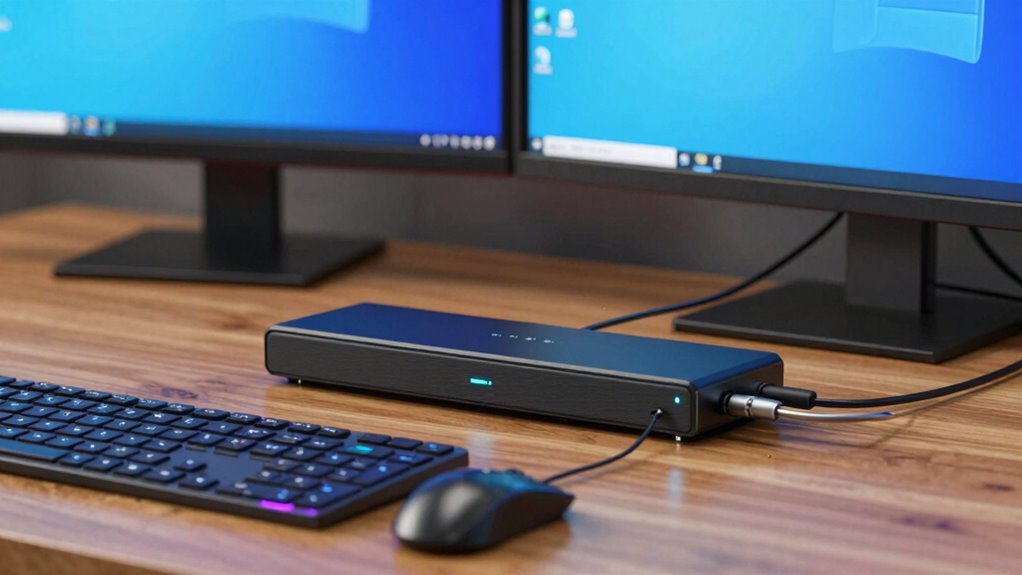

A KVM switch lets you control two or more computers with a single keyboard, mouse, and monitor smoothly, without lag. To avoid delays, choose a high-quality switch with fast-switching capabilities and compatible video connections like HDMI or DisplayPort. Proper cable management and ensuring compatibility with your devices help maintain performance. For seamless operation, opt for models that support your monitor resolution and peripherals. Keep exploring to discover how to set up your ideal multi-computer workspace effortlessly.
Key Takeaways
- Choose a KVM switch with native support for your operating systems to ensure seamless switching without lag.
- Opt for models with high-quality video and USB ports to maintain fast response times and minimal delay.
- Check for features like keyboard hotkeys or physical buttons for quick, lag-free toggling between computers.
- Ensure the KVM switch supports your monitor resolutions and peripherals to prevent signal lag or loss.
- Proper cable management and installation can reduce interference and improve overall switching performance.
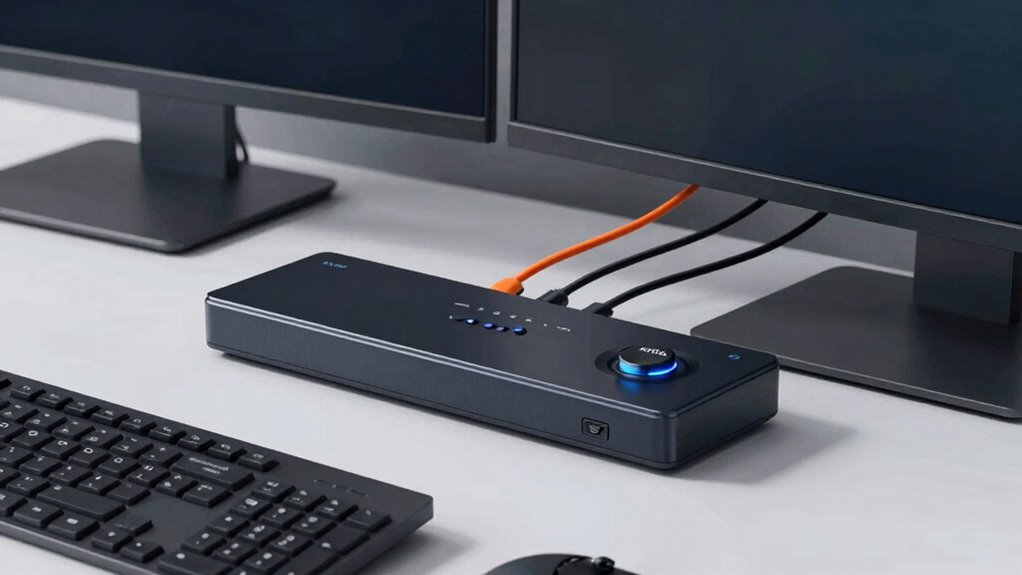
Have you ever wished you could easily control multiple computers with just one keyboard, mouse, and monitor? If so, a KVM switch is exactly what you need. These devices allow you to toggle between two or more computers effortlessly, saving space and reducing clutter. But before diving in, it’s vital to understand some key aspects, especially around cable management and compatibility issues. Proper cable management keeps your setup organized and prevents accidental disconnections or damage. When choosing a KVM switch, look for models that offer clear cable routing options, such as labeled ports or integrated cable organizers. This way, you can keep your workspace tidy and easily troubleshoot connections if needed.
Proper cable management and compatibility are key for an organized, efficient KVM switch setup.
Compatibility issues are a common concern, especially when connecting different types of computers or peripherals. Not all KVM switches support every operating system, such as Windows, macOS, or Linux, so double-check the product specifications before buying. Also, consider the video connections your computers use—HDMI, DisplayPort, DVI, or VGA—and ensure the switch supports those formats. Some switches come with adapters, but relying on these can sometimes cause lag or signal degradation, affecting your experience. It’s best to choose a model that natively supports your setup to avoid frustration.
Another aspect to consider is the switch’s ability to handle your specific peripherals. If you use high-resolution monitors, gaming mice, or specialized keyboards, verify that the KVM switch can handle the bandwidth and features you require. For example, some switches support USB 3.0 for faster data transfer, which is essential for high-performance peripherals. If you’re working with audio or multiple monitors, look for switches that support audio switching and multi-monitor setups to streamline your workflow.
Ease of installation is also fundamental. Devices with straightforward setup instructions and minimal cable clutter make the process smoother. Many KVM switches are plug-and-play, but some may require driver installation or additional configuration. Once set up, test all connections thoroughly to ensure smooth switching without lag or signal loss. Additionally, understanding the importance of resolution support can help you select a device that maintains image quality across different displays. Remember, choosing a well-made KVM switch tailored to your specific needs will make controlling multiple computers much simpler and more efficient, all while maintaining a clean, organized workspace.

ATLAHET Dual Monitor KVM Switch HDMI Two Port 4K 60Hz KVM Switch for 2 Computers 2 Monitors with 4 USB 3.0 Ports Support Copy Extended Display and Desktop Control Including USB 3.0 Cable 15CM Longth
【KVM Switch Dual Monitor 2 In 2 Out】This KVM switch allows you to control 2 computers using one…
As an affiliate, we earn on qualifying purchases.
As an affiliate, we earn on qualifying purchases.
Frequently Asked Questions
Can a KVM Switch Support Audio and USB Devices Simultaneously?
Yes, a KVM switch can support audio and USB devices simultaneously. Look for models with dedicated audio support and USB compatibility, ensuring your headphones, microphones, and peripherals work seamlessly across both computers. These switches often have separate audio jacks and multiple USB ports, so you can switch between devices easily without unplugging. Make sure to choose a KVM switch that specifies audio support and robust USB compatibility for smooth, hassle-free operation.
What Is the Maximum Number of Computers a KVM Switch Can Connect?
The maximum number of computers you can connect to a KVM switch depends on its maximum port capacity. Most standard KVM switches support between 2 to 16 computers, but some advanced models can handle up to 32 or more. When choosing a KVM switch, consider the number of multiple device connections you need and verify it has enough ports to meet your requirements without sacrificing performance.
How Do I Troubleshoot Lag or Delay Issues With My KVM Switch?
To troubleshoot lag with your KVM switch, first check the cable quality; replace any frayed or low-quality cables. Guarantee your devices are compatible with the switch, as incompatibility can cause delays. Also, test the switch with different ports or cables to identify issues. Keep firmware updated, and minimize interference from other electronic devices. These steps help improve performance and reduce lag effectively.
Are Wireless KVM Switches Available for Home or Office Use?
Yes, wireless KVM switches are available for home or office use, and they’re a game-changer! Imagine controlling multiple computers with just a click, all through seamless wireless connectivity. These switches offer incredible remote access, letting you switch between devices effortlessly, without messy cables. Say goodbye to clutter and hello to a sleek, flexible workspace where you can manage everything from anywhere. Wireless KVMs make your setup smarter and more efficient than ever!
Do KVM Switches Require Special Configuration for Different Operating Systems?
You don’t usually need special configuration for different operating systems when using a KVM switch. Most devices are compatible right out of the box, but you should check device compatibility to guarantee smooth operation. Sometimes, firmware updates are necessary to improve compatibility or fix bugs. Keep your KVM switch’s firmware current, and you’ll enjoy seamless switching between systems without needing complex setup.

USB3.0 KVM Switch HDMI 4K@60Hz for 4 Computers Share 1 Monitor, KVM Switch 4 Port with 3 USB 3.0 Ports Share Keyboard Mouse, Support Button Switch, Plug and Play
【HDMI KVM Switch 4 Port】KVM Switch HDMI supports 4 computers to share 1 monitor and is controlled by…
As an affiliate, we earn on qualifying purchases.
As an affiliate, we earn on qualifying purchases.
Conclusion
Now that you know the basics of a KVM switch, aren’t you excited to streamline your workspace and boost productivity? Imagine switching seamlessly between two computers with just a press of a button—no lag, no fuss. Isn’t it time you simplified your setup and saved space? With a KVM switch, you can enjoy effortless control and organization. Why settle for clutter and chaos when efficiency is just a switch away?

UGREEN 8K@60Hz HDMI Displayport KVM Switch 3 Monitors 2 Computers, Aluminum 4K@240Hz with 4 USB 3.0 Ports for 2 Computers Share Triple Monitors with 4 DP+2 HDMI+2 USB Cables/Power Adapter/Controller
KVM Switch 3 Monitors 2 Computers: This 2*Displayport + 1*HDMI KVM Switches allows you to switch effortlessly between…
As an affiliate, we earn on qualifying purchases.
As an affiliate, we earn on qualifying purchases.

RubiPro HDMI KVM Switch 2 Monitors 2 Computers – Dual Display 8K@60Hz, 4K@120Hz, USB 3.0 Fast Data Transfer, Plug & Play for Windows/Mac/Linux with an Additional 8K HDMI Cable
[Ultimate Dual Monitor Control] Effortlessly manage two PCs using just one keyboard and mouse. This HDMI KVM Switch…
As an affiliate, we earn on qualifying purchases.
As an affiliate, we earn on qualifying purchases.