Setting up a guest network is the easiest way to protect your main devices while offering reliable internet to visitors. To do this, access your router’s admin panel and enable the guest network option. Choose a different SSID and password, ensuring security protocols like WPA2 or WPA3 are enabled. Device isolation keeps guests from accessing your personal devices and files. Keep your network safe and secure—stay tuned to discover more tips on perfecting your setup.
Key Takeaways
- Enable the guest network feature via your router’s admin panel for quick setup.
- Create a unique SSID and password separate from your main Wi-Fi.
- Use WPA2 or WPA3 encryption to secure the guest network from eavesdropping.
- Activate device isolation to prevent guest devices from accessing your main devices or files.
- Limit guest access duration and bandwidth to maintain security and network performance.
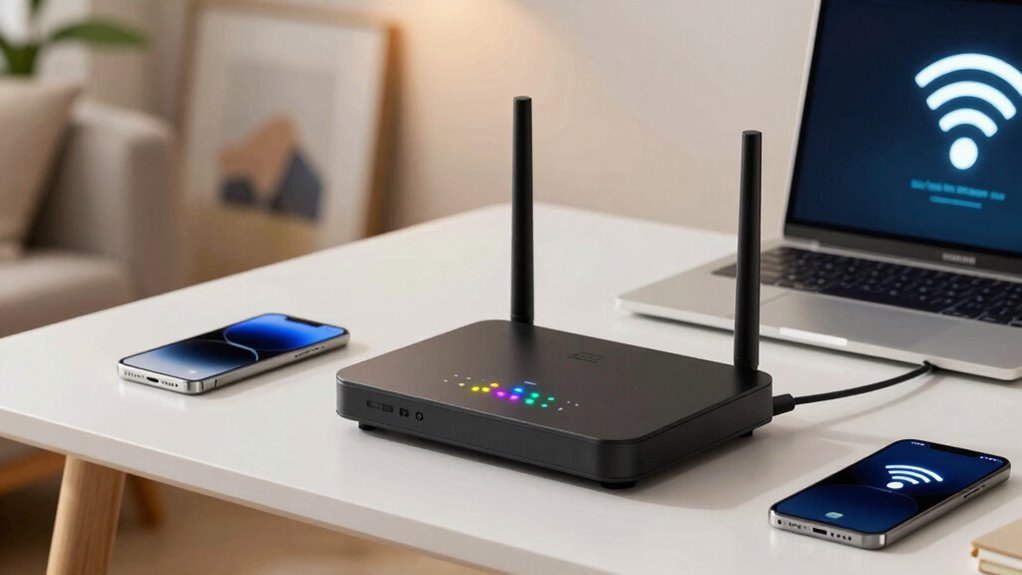
Have you ever wondered how to provide internet access to visitors without risking your main network’s security? Setting up a guest network is the perfect solution. It allows your guests to connect to the internet without gaining access to your primary devices or sensitive data. When you create a separate guest network, you’re effectively isolating your main network from potential threats that could come from external users. This is a vital step in maintaining robust network security.
Creating a guest network isolates your main devices, keeping your data secure from external threats and visitors.
By enabling a guest network, you ensure that your main devices—computers, smart home systems, or work-related equipment—remain protected. This separation is achieved through device isolation, which keeps your primary network’s resources inaccessible from the guest network. Even if a visitor’s device gets infected with malware or tries to access files, it won’t be able to touch your personal or work data. This containment reduces the risk of malware spreading from guest devices into your core network, preserving your security and peace of mind.
Most modern routers have a straightforward process for setting up a guest network. Typically, you access your router’s admin panel through a web browser, then navigate to the wireless or network settings. There, you’ll find an option labeled “Guest Network” or similar. You can enable it and assign a unique network name (SSID) and password, separate from your main Wi-Fi. This way, visitors don’t accidentally connect to your primary network, which may have higher security settings or access to more sensitive information.
It’s important to enable encryption on your guest network, just as you do for your main Wi-Fi. WPA3 or WPA2 security protocols are recommended to prevent eavesdropping and unauthorized access. When configuring your guest network, avoid sharing your main Wi-Fi password; instead, give visitors the separate guest network password. This keeps your main devices secure while still offering reliable internet access to guests.
Remember, device isolation is the main purpose of a guest network. It ensures that devices connected to the guest Wi-Fi can only access the internet and not each other or your main devices. This feature is often enabled automatically or can be toggled in your router’s settings. If you want to add an extra layer of protection, some routers also allow you to limit bandwidth or set time restrictions for guest users, ensuring they don’t overload your network or stay connected longer than needed. Additionally, enabling wireless security protocols helps safeguard your network from unauthorized access.
In short, creating a guest network is a simple yet powerful way to protect your main devices. It enhances your network security by isolating guest traffic and keeps your personal and work-related data safe from potential threats. With just a few clicks, you can enjoy the benefits of open internet access for visitors without compromising your digital security.
Frequently Asked Questions
Can I Limit Bandwidth on My Guest Network?
Yes, you can limit bandwidth on your guest network by using bandwidth throttling features available in your router settings. This helps control the amount of data each device consumes, ensuring your main devices stay fast. By creating network segmentation, you keep guest traffic separate, making management easier. Check your router’s admin panel for options to set bandwidth limits, giving you better control and improved network performance.
How Many Devices Can Connect to the Guest Network?
You can typically connect dozens of devices to your guest network, but it depends on your router’s device compatibility and capacity. Most routers support 20-50 devices, guaranteeing network isolation for security. To prevent overload and maintain performance, check your router’s specifications. By limiting the number of devices, you keep your main network protected and ensure your guest network remains stable and secure for visitors.
Is My Guest Network Visible to Guests?
Your guest network is typically visible to your guests, making it easy for them to connect. However, for guest network privacy, you can hide its visibility in your router settings. This way, your guests won’t see the network name, adding an extra layer of security. You control whether your guest network is visible or hidden, ensuring your main devices stay protected while offering convenient access for visitors.
Can I Change the Guest Network Password Remotely?
Yes, you can change your guest network password remotely through your router’s admin interface or mobile app. This allows for quick updates via remote access, enhancing your password security. Just log in using your credentials, navigate to the guest network settings, and update the password. Doing this regularly helps protect your main devices from unauthorized access and keeps your network secure, even when you’re away.
Will Guest Network Setup Affect My Main Wi-Fi?
Setting up a guest network won’t affect your main Wi-Fi because it enhances network security through device isolation. You can keep your primary devices protected while guests connect separately, preventing unauthorized access. This separation ensures your main network remains secure, even if a guest device gets compromised. So, configuring a guest network is a simple way to boost security without disrupting your main Wi-Fi, giving you peace of mind.
Conclusion
Setting up a guest network is like building a sturdy fence around your digital backyard. It keeps your main devices safe from unwanted visitors while still welcoming friends and visitors to enjoy your Wi-Fi. With just a few simple steps, you can create a secure space that protects your private data and keeps your network running smoothly. So, don’t leave your digital yard unprotected—set up that guest network and enjoy peace of mind.