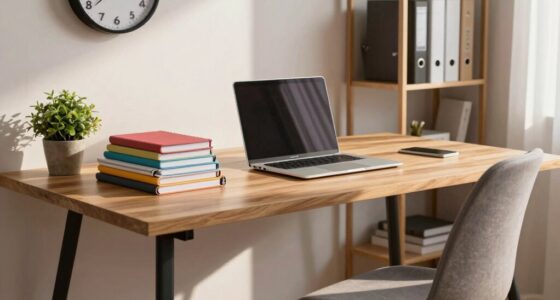
To avoid neck strain and reduce eye fatigue, position your monitor so that the top of the screen lines up with your eye level, keeping your neck in a neutral position. Sit about 20 to 30 inches away from the screen, and adjust the brightness to match your ambient lighting, reducing glare. Using blue light filters can also lessen eye strain. Proper adjustments make your workspace more comfortable—continue exploring for simple tips to optimize your setup.

Prime made for students and young adults
- Fast, free delivery for dorm and study essentials
- Prime Video and Amazon Music included
- Member-only deals
Key Takeaways
- Position the top of your monitor at eye level to prevent neck strain and maintain a neutral head position.
- Keep the monitor 20 to 30 inches away from your eyes to reduce eye fatigue and ensure comfortable viewing.
- Adjust monitor height and angle to avoid tilting your head up or down, supporting ergonomic neck posture.
- Use adjustable stands or risers to elevate your monitor, aligning it with your eye line for optimal comfort.
- Minimize glare and eye strain by matching monitor brightness to ambient lighting and using blue light filters.
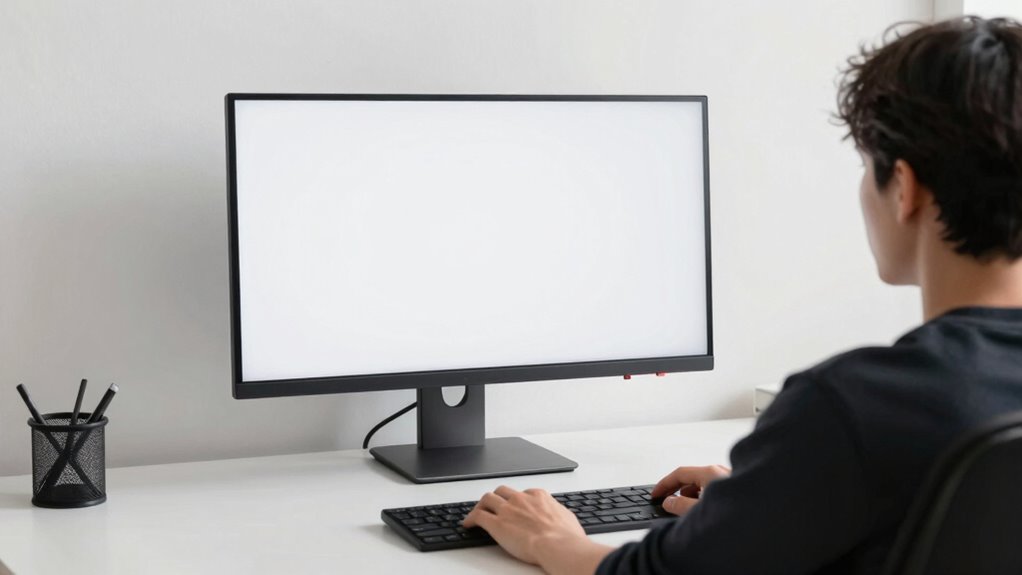
Maintaining proper monitor ergonomics is essential for preventing strain and discomfort during long hours at your desk. One of the most effective ways to do this is by adjusting your monitor’s position to ensure it’s at eye level. When your screen is too high or too low, you may strain your neck and shoulders, leading to fatigue over time. To avoid this, elevate your monitor so that the top of the screen aligns with your eye line. This positioning keeps your neck in a neutral position, reducing tension and making it easier to focus on your work without discomfort. Additionally, the monitor’s distance from your eyes plays a vital role. Ideally, you should sit about an arm’s length away from the screen, approximately 20 to 30 inches. This distance helps prevent eye strain and minimizes the need to lean forward or squint, which can cause neck and eye fatigue. If you notice yourself leaning in or moving closer to read small text, adjust your monitor further back or increase text size to maintain comfortable viewing.
Another key aspect of monitor ergonomics involves managing visual factors like brightness and blue light exposure. Your monitor’s brightness should match the ambient lighting in your workspace. If it’s too bright, it can create glare and contribute to eye strain; if it’s too dim, your eyes have to work harder to see clearly. Many modern monitors come with adjustable brightness settings, allowing you to fine-tune the display to suit your environment. This adjustment helps reduce eye fatigue and enhances overall comfort. Furthermore, blue light emitted from screens can cause digital eye strain, especially during prolonged use. To counteract this, consider enabling blue light filters or using glasses with blue light blocking lenses. These features help minimize the impact of blue light, easing eye fatigue and improving sleep quality if you work late into the evening. Proper monitor placement and screen adjustments are crucial for maintaining long-term eye health and comfort.
Incorporating these ergonomic practices ensures that your monitor setup supports your health and productivity. Proper positioning at eye level, maintaining an appropriate distance, and managing brightness and blue light exposure are simple yet effective steps. They help prevent common issues like neck strain, eye fatigue, and headaches, making your long work hours more comfortable. Remember, small adjustments can make a significant difference, so take the time to optimize your workspace for your comfort and well-being. By doing so, you’ll not only protect your physical health but also stay more focused and efficient throughout your day.
As an affiliate, we earn on qualifying purchases.
Frequently Asked Questions
How Do I Know if My Monitor Height Is Correct?
You’ll know your monitor height is correct if, when sitting in your ergonomic desk setup, the top of the screen is at or just below eye level. Keep your monitor placement about an arm’s length away, so you don’t strain your neck or eyes. Adjust the height so you can look straight ahead comfortably, reducing neck strain and promoting better posture during long work sessions.
What Are the Best Eye Exercises to Prevent Strain?
To prevent eye strain, try blinking exercises to keep your eyes moist and reduce dryness. Incorporate the palming technique by closing your eyes and gently covering them with your palms for a minute, which relaxes your eye muscles. Regularly practicing these eye exercises can help ease fatigue, improve circulation, and keep your vision comfortable during long screen sessions. Remember, consistent breaks are also essential for eye health.
How Often Should I Take Breaks From Screen Time?
You should take a break every 20 minutes when using screens. During these breaks, look away and focus on something 20 feet away for at least 20 seconds. Use ergonomic accessories like adjustable stands to keep your monitor at eye level and blue light filters to reduce eye strain. Regular breaks and proper setup help prevent discomfort and protect your eyes during extended screen time.
Can Monitor Settings Affect Eye Comfort?
Your monitor settings can truly influence your eye comfort. Adjusting for best display calibration reduces eye strain, and enabling blue light filters eases fatigue during long hours. When you fine-tune brightness and contrast, you create a soothing visual environment that minimizes discomfort. By taking control of these settings, you help protect your eyes and enjoy a more comfortable, strain-free experience every time you sit down at your screen.
What Are Signs of Neck Strain From Improper Monitor Placement?
You might notice neck pain, stiffness, or headaches that worsen after long hours at your desk. These signs indicate neck strain from improper monitor placement. To fix this, focus on posture correction by aligning your monitor at eye level and using ergonomic accessories like adjustable stands. Taking regular breaks and stretching also helps reduce strain, keeping your neck comfortable and preventing long-term discomfort.
As an affiliate, we earn on qualifying purchases.
Conclusion
So, next time you’re hunching over your screen, remember: your neck and eyes are silently judging you. Adjust that monitor to eye level, keep your distance, and spare yourself the drama of neck strain. After all, isn’t it worth a little effort now to avoid the epic saga of eye pain and posture disasters later? Take care of your tech setup—your body will thank you, and your future self will thank you even more.
As an affiliate, we earn on qualifying purchases.
monitor brightness adjustment tool
As an affiliate, we earn on qualifying purchases.
As an affiliate, we earn on qualifying purchases.
Halloween Picks
halloween
As an affiliate, we earn on qualifying purchases.