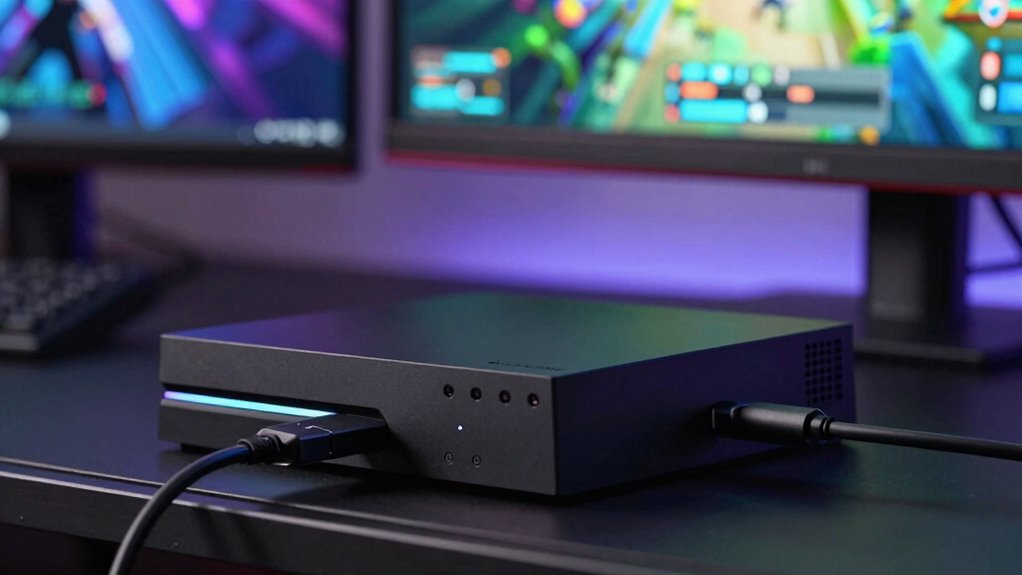

If your console stream looks blurry, it could be due to compatibility issues, incorrect settings, or hardware limitations. Make sure your capture card supports your console’s resolution and refresh rate, and check that your streaming software is properly configured. Updating drivers and ensuring your internet speed is fast enough also helps improve clarity. Paying attention to these factors can make a big difference, and if you keep exploring, you’ll discover how to fix these issues for a sharper stream.

Prime made for students and young adults
- Fast, free delivery for dorm and study essentials
- Prime Video and Amazon Music included
- Member-only deals
Key Takeaways
- Incompatible or low-quality capture cards can cause poor resolution, resulting in blurry streams.
- Incorrect settings in streaming software, such as resolution and bitrate, often lead to pixelation.
- Outdated drivers or hardware limitations can degrade video quality and cause blurriness.
- Insufficient internet upload speed may compress video excessively, reducing clarity.
- Mismatched resolution or refresh rate between the console, capture card, and software can produce blurry footage.
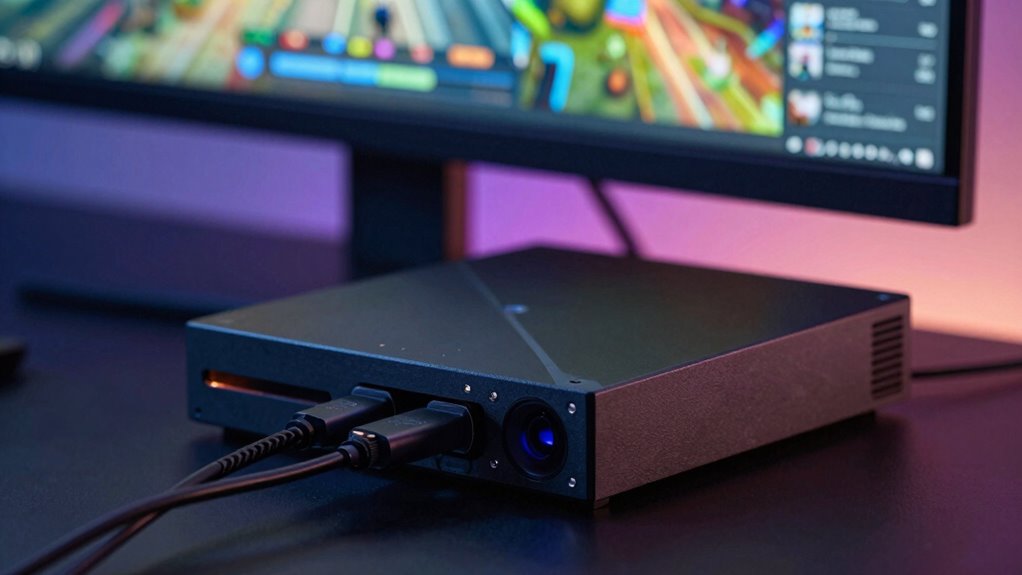
A capture card is a device that records or streams video signals from gaming consoles, cameras, or PCs to your computer. If you’re looking to share your gameplay or create content, understanding how your capture card interacts with your setup is essential. One common issue gamers face is a blurry or low-quality stream, which often comes down to compatibility and software choices. First, you need to ensure your capture card is compatible with your game console. Not all capture cards work seamlessly with every device. For instance, some are designed specifically for PlayStation, Xbox, or Nintendo Switch, while others support multiple platforms. Checking the manufacturer’s specifications helps you avoid purchasing a card that won’t work properly with your console, saving you frustration and time.
Once you confirm game console compatibility, it’s important to consider your streaming software options. The software you use acts as the bridge between your capture card and your audience, so selecting the right one can significantly affect your stream quality. Popular options like OBS Studio, Streamlabs OBS, and XSplit offer different features and levels of customization. These programs process the video feed from your capture card and push it to streaming platforms like Twitch or YouTube. If your software isn’t configured correctly, or if the settings are suboptimal, your stream may appear blurry or pixelated. Adjusting resolution, bitrate, and encoder settings within your streaming software can dramatically improve clarity. Additionally, ensuring your capture card supports the resolution and refresh rate necessary for your desired quality can prevent bottlenecks that lead to blurriness.
Another common cause of blurry streams is an incompatible or outdated driver for your capture card. Always ensure you’ve installed the latest drivers from the manufacturer’s website. Updated drivers optimize performance and compatibility, reducing the chances of video quality issues. Additionally, your internet upload speed plays a role in stream quality. Even with a high-quality capture card and software, a slow connection can cause compression artifacts and blurriness. Aim for a stable, high upload speed to deliver crisp, clear streams.
Popular right now
Dyson Car+Boat Cordless Handheld Vacuum

LG 85-Inch QNED73B Mini LED 4K Smart TV (2026)

Samsung 75-Inch M80H Series Mini LED 4K Smart TV (2026)
As an affiliate, we earn on qualifying purchases.
Frequently Asked Questions
Do Capture Cards Work With All Gaming Consoles?
Yes, capture cards generally work with most gaming consoles, but you should check console compatibility first. Different devices offer varying levels of device integration, so verify your capture card supports your specific console model. Some capture cards connect via HDMI, while others may need additional adapters. By verifying compatibility and connection options, you can smoothly integrate your console with the capture card for clear, high-quality streaming.
Can Capture Cards Improve Stream Quality Instantly?
Yes, a capture card can instantly boost your stream quality, but only if your hardware is compatible and you’ve updated your software. When you connect it correctly, you might see immediate improvements, yet some issues could persist. The real upgrade comes from ensuring your hardware supports high resolutions and that your software is up-to-date, revealing the full potential of your setup and giving your stream a professional edge.
What Is the Difference Between Internal and External Capture Cards?
Internal capture cards are installed inside your PC, offering better hardware compatibility and typically lower latency, making them ideal for high-quality streaming and recording formats. External capture cards connect via USB or Thunderbolt, offering portability and easy setup, but may have slightly higher latency and limited compatibility with certain hardware. Your choice depends on your setup and needs, balancing convenience with performance for excellent streaming quality.
How Much Does a High-End Capture Card Cost?
A high-end capture card can cost between $300 and $600, offering top-tier performance. This price range is perfect if you’re aiming for professional setups or streaming in 4K with minimal latency. For those on a budget, options start around $100, but they might not deliver the same quality. Keep in mind, investing in a high-end card enhances your stream’s clarity, making your gameplay look sharper and more professional.
Are There Compatibility Issues With Certain Streaming Software?
You might encounter compatibility issues with certain streaming software depending on your capture card. Always check software compatibility before buying, and make sure you keep your driver updates current. Some capture cards work better with specific programs, so verify that your chosen software supports your device. Regular driver updates can fix bugs and improve performance, reducing potential compatibility problems and ensuring a smoother streaming experience.
Conclusion
Now that you know how capture cards work, you’re better equipped to turn your gaming sessions into crystal-clear broadcasts. Think of your setup like a painter’s canvas—you want every detail sharp and vibrant. When you choose the right capture card, it’s like opening a high-definition lens for your console. So, don’t settle for blurry images; unleash your stream’s full potential and let your gameplay shine like a star in the night sky.