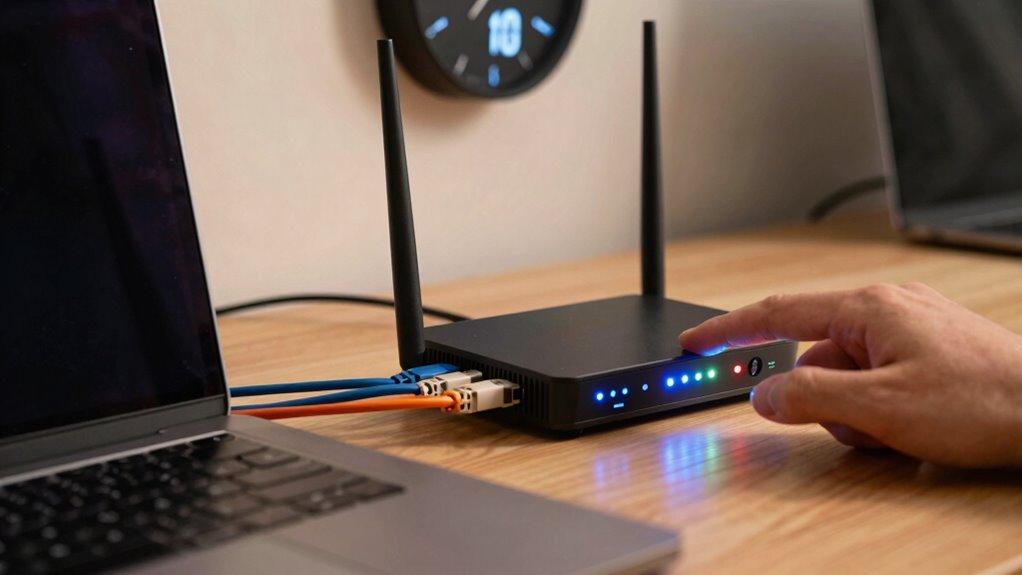

To perform a 10-minute reset of your home network, start by turning off your router and disconnecting all cables. Wait about 10 seconds, then reconnect everything and power it back on. Allow the router to fully restart, which can clear temporary glitches and improve signal stability. For best results, confirm your firmware is up-to-date and your router is placed centrally. Keep in mind, these steps can often resolve issues fast—and there’s more to explore if you want to optimize further.
Key Takeaways
- Turn off the router and wait approximately 10 seconds before turning it back on to clear temporary glitches.
- Ensure the router fully boots up before reconnecting devices to establish a fresh connection.
- Perform a reset by pressing the reset button if issues persist, then reconfigure network settings.
- After reset, update firmware and change Wi-Fi channels to reduce interference.
- Position the router centrally, away from electronics, and monitor signal quality during the reset process.
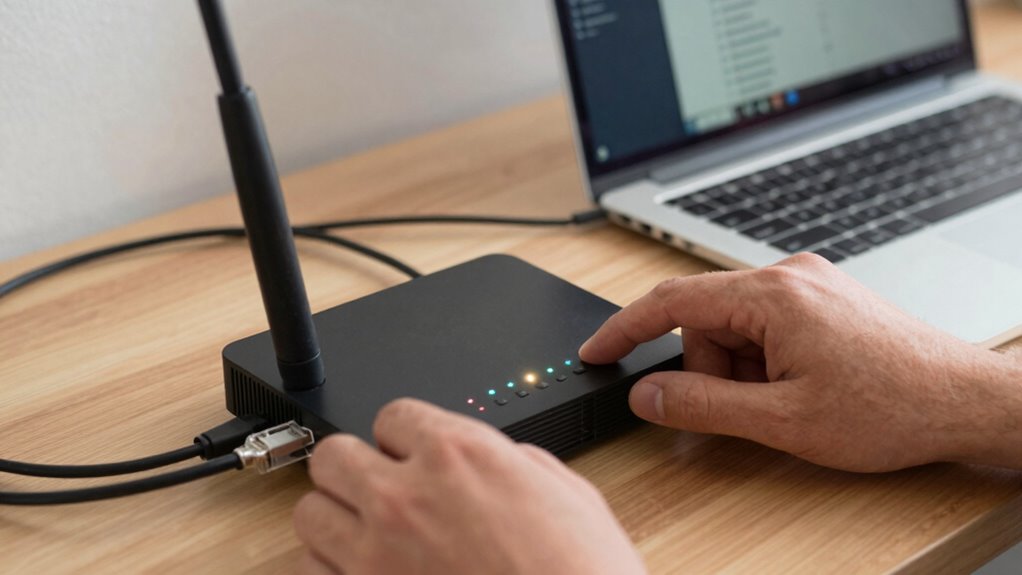
A stable home network is vital for everyday activities like streaming, working, and connecting with loved ones. When your Wi-Fi slows down or drops unexpectedly, it can be frustrating and disruptive. One common cause of connectivity issues is Wi-Fi interference, which happens when signals from neighboring networks or electronic devices collide with your own. To combat this, start by changing the router’s channel through its settings. This simple step can often improve performance by reducing interference. Another key aspect is ensuring your router’s firmware is up to date. Manufacturers regularly release updates that fix bugs, improve stability, and enhance security. Outdated firmware can cause your network to become sluggish or unresponsive, so checking for updates should be part of your troubleshooting routine.
When you experience connectivity problems, the first thing you should do is reset your router. This doesn’t mean unplugging it randomly; instead, follow a quick, deliberate sequence. Begin by turning off your router and waiting for about 10 seconds. This pause allows residual power to dissipate and clears temporary glitches. Then, turn the router back on and give it a few moments to boot up fully. During this process, your router may automatically refresh its connection and clear minor software hiccups. If issues persist after the reset, check your router’s firmware to ensure it’s running the latest version. Access the router’s admin panel via your web browser—usually by entering an IP address like 192.168.1.1—and navigate to the firmware update section. Regularly monitoring your wireless signal quality can help identify issues caused by signal degradation or interference. While updating the firmware, it’s wise to review your Wi-Fi settings, including the network name (SSID) and password. Sometimes, changing these can help avoid interference from nearby networks that use the same default settings. Additionally, position your router in a central location, away from thick walls or electronics that can cause interference. If your Wi-Fi still struggles despite these efforts, consider switching to a less congested channel or upgrading to a newer router model with better interference management and stronger signals.

Keep Connect MAX Router Rebooter, Wi-Fi Reset Device, Monitors Connectivity and Resets When Required. No App Necessary. If You Enter a Phone Number it Will Send Texts Upon resets.
- Automatic Router Reboot: Automates router resets for reliable internet
- 24/7 Connectivity Monitoring: Constantly checks router and modem health
- Event Notifications: Sends texts or emails upon resets or issues
As an affiliate, we earn on qualifying purchases.
As an affiliate, we earn on qualifying purchases.
Frequently Asked Questions
Can I Reset My Router Remotely Without Unplugging It?
Yes, you can reset your router remotely without unplugging it if your router supports remote access. Log into your router’s web interface through a secure connection, then look for options like “restart” or “reboot.” This method often allows firmware updates too, which can improve performance and security. Just make certain remote access is enabled beforehand, and you have the necessary login credentials for safe, quick resets from anywhere.
Will a Reset Delete My Customized Wi-Fi Settings?
Yes, resetting your router can delete your customized Wi-Fi settings, including your network name and password, which affects your Wi-Fi security. When you perform a reset, it restores the device to factory defaults, wiping out all your personalized network customization. To prevent losing these settings, back up your configuration or note down your Wi-Fi details before resetting, ensuring your network remains secure and easily restored afterward.
How Often Should I Perform the Reset Sequence?
You should perform the reset sequence only when necessary, such as after firmware updates or if you notice security issues with your password. Doing it too often can erase customized Wi-Fi settings and disrupt your network. Resetting helps guarantee your device runs smoothly and stays secure, but it’s best to do it sparingly. Regularly update firmware and maintain strong password security to keep your network safe without frequent resets.
Does Resetting Resolve All Types of Network Issues?
Think of resetting your network like hitting a refresh button on a messy desk. It can fix many issues, but not all. Resetting often resolves problems caused by network congestion or outdated firmware updates, clearing temporary glitches. However, stubborn issues like hardware failures or complex configurations may need deeper troubleshooting. So, while it’s a helpful first step, don’t expect a reset to solve everything—sometimes, you need more tools in your toolkit.
Are There Risks Involved in Performing a Reset?
Yes, there are risks involved when you perform a reset. You might face security concerns if sensitive settings are lost or compromised during the process. Additionally, resetting your device could affect your warranty if it’s considered tampering or voids warranty terms. Be sure to back up important configurations and comprehend your device’s warranty conditions before resetting to avoid potential issues and ensure your network stays secure.
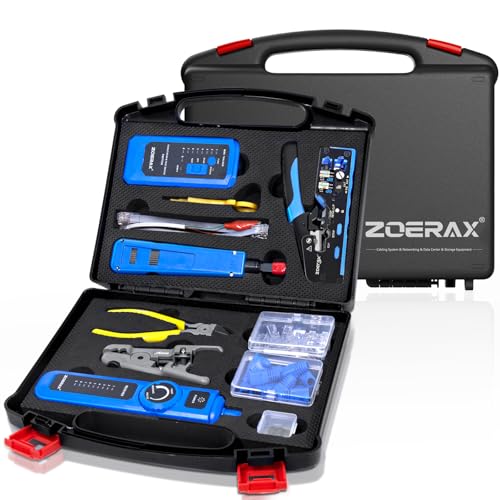
Professional Network Tool Kit, ZOERAX 14 in 1 – RJ45 Crimp Tool, Cat6 Pass Through Connectors and Boots, Cable Tester, Wire Stripper, Ethernet Punch Down Tool
- All-in-One Professional Kit: Sturdy case for easy transport and storage
- Complete Tool Set: Includes crimper, punch down, stripper, and connectors
- Versatile Ethernet Crimper: Adjustable, tool-free for pass-through and standard connectors
As an affiliate, we earn on qualifying purchases.
As an affiliate, we earn on qualifying purchases.
Conclusion
And there you have it—your instant magic wand for home network chaos! Just a quick 10-minute reset can turn your internet from a sluggish snail into a lightning-fast cheetah, leaving buffering wheels spinning in the dust. With this simple sequence, you’ll conquer connection issues faster than you can say “reboot,” transforming your living room into a high-speed digital highway. Say goodbye to frustration and hello to seamless streaming—your network’s new best friend!

AVID POWER 630W 5.3 Amp Wood Router Tool with Fixed Base Compact Router for Woodworking, 35,000 RPM, 1/4” collet & 5 Trim Bits, Straight & Roller Guide, 2 Wrenches and Carbon Brushes
- Powerful Motor: 630W 5.3 Amp for smooth woodworking
- High-Speed Operation: 35,000 RPM for efficient cutting
- Multiple Guide Modes: Includes straight and roller guides
As an affiliate, we earn on qualifying purchases.
As an affiliate, we earn on qualifying purchases.
Wi-Fi interference reduction devices
As an affiliate, we earn on qualifying purchases.
As an affiliate, we earn on qualifying purchases.