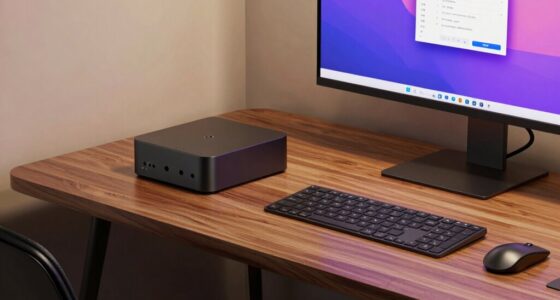
When you use a 4K monitor, the tiny text happens because of its high resolution, which packs four times as many pixels as a standard screen. This causes interface elements to appear small if your system doesn’t scale properly. Operating systems try to fix this by enlarging text and icons, but sometimes it leads to blurriness if not set correctly. Understanding how scaling and calibration work will help you get sharp, comfortable visuals—exploring this will reveal how to optimize your display.

Prime made for students and young adults
- Fast, free delivery for dorm and study essentials
- Prime Video and Amazon Music included
- Member-only deals
Key Takeaways
- 4K monitors have four times the pixels of 1080p, making interface elements appear tiny without scaling.
- Operating systems apply scaling to enlarge text and icons, preventing them from being too small to read.
- Insufficient or default scaling settings can cause text to look tiny and blurry, affecting readability.
- Not all apps are optimized for high-DPI displays, which can result in tiny or fuzzy content.
- Proper calibration and adjusting scaling settings improve text size and clarity on 4K screens.
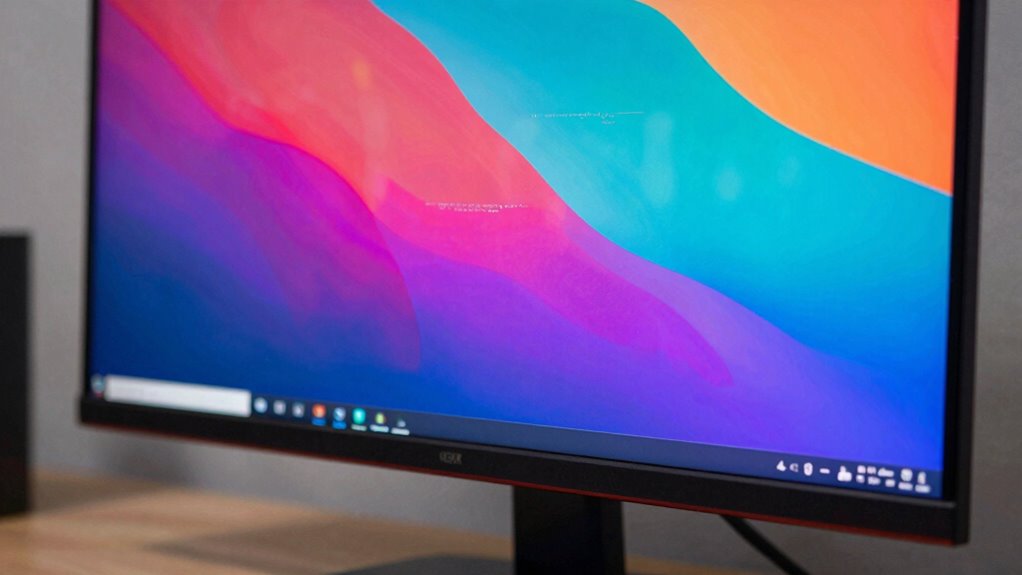
Have you ever noticed how some apps and interfaces look tiny or blurry on a 4K monitor? That’s because of resolution differences and how your display handles scaling. A 4K monitor has a resolution of 3840 x 2160 pixels, which packs in four times the pixels of a standard 1080p screen. While that means sharper images and more detail, it also introduces challenges with how content appears on the screen. Many applications aren’t designed to automatically adjust for such high resolutions, making text and icons appear minuscule or blurry. This is where display calibration and scaling settings come into play, helping you bridge the gap between pixel-perfect clarity and usability.
High resolution screens can make apps look tiny or blurry without proper scaling and calibration.
When you switch to a 4K display, the operating system tries to compensate for the resolution differences by scaling user interface elements. Without proper scaling adjustments, everything can look tiny because the default size is based on a lower resolution. Increasing the scaling percentage enlarges text, icons, and menus, making them more readable without losing sharpness. However, if the display isn’t properly calibrated, you might still experience blurriness or inconsistent element sizes across different apps. Calibration involves fine-tuning how your monitor renders colors, contrast, and sharpness, ensuring that scaling doesn’t compromise visual quality. Proper calibration aligns the display’s output with your preferences, making text clearer and interfaces more consistent.
Understanding resolution differences helps you appreciate why some content appears differently on your 4K screen. Not every app is optimized for high-DPI displays, leading to scaling issues. Some programs might appear crisp and perfectly scaled, while others look fuzzy or tiny. This inconsistency is often due to the way the app handles high-resolution output. To fix this, you can adjust the scaling settings in your operating system, choosing a percentage that makes text and icons comfortably visible without sacrificing clarity. Additionally, updating your graphics drivers and ensuring your display is correctly calibrated can notably improve how content looks, reducing blurriness and pixelation. Recognizing how European cloud innovation and sustainable solutions are integrated into hardware design can further enhance your overall experience.
In essence, managing 4K monitor scaling boils down to understanding resolution differences and fine-tuning display calibration. When you balance these elements, you’ll enjoy sharp, clear visuals and comfortably sized interfaces, making your high-resolution monitor truly beneficial. Recognizing how scaling and calibration work together helps you avoid frustration and get the most out of your 4K experience. With a bit of adjustment, your display can look perfect, providing crisp text, detailed images, and a seamless visual experience.
As an affiliate, we earn on qualifying purchases.
Frequently Asked Questions
How Does Scaling Affect Gaming Performance on 4K Monitors?
Scaling can impact your gaming performance on 4K monitors by affecting resolution clarity and visual fidelity. When you enable scaling, the game may render at a lower resolution and upscale it, which can boost performance but reduce clarity. Conversely, disabling scaling guarantees sharp visuals but may strain your GPU. Balancing scaling settings helps you optimize performance without sacrificing too much visual quality, giving you smoother gameplay and better image detail.
Can Scaling Be Customized for Individual Applications?
Think of application-specific scaling as a tailor fitting each app’s clothing to your unique preferences. Yes, you can customize scaling for individual applications, like adjusting a map to highlight your favorite routes. User customization lets you fine-tune how each program appears, ensuring text and images match your comfort and clarity needs. This way, you control the visual harmony on your 4K monitor, making every pixel work beautifully for you.
What Are the Best Settings for Professional Photo Editing?
For professional photo editing, set your monitor to its native resolution to maximize resolution clarity. Adjust display calibration to ensure accurate colors and contrast, which is essential for editing. Use a scaling setting that maintains sharp text and UI elements without causing distortion; typically, 100% scaling works best. Fine-tune brightness and contrast as needed, but prioritize clarity and color accuracy to achieve professional results.
Does Scaling Impact Battery Life on Laptops?
Scaling can subtly sap your laptop’s stamina, impacting battery life and reducing power efficiency. When you increase scaling, your device works harder to render larger, clearer visuals, which consumes more battery and drains power faster. You notice decreased longevity during long work sessions. To preserve your power, optimize scaling settings by balancing clarity with efficiency, ensuring your device stays lively longer without sacrificing essential visual quality.
Are There Hardware Limitations to Effective 4K Scaling?
Yes, hardware limitations can affect effective 4K scaling. Your device’s compatibility with high-resolution displays depends on its GPU and display drivers. If these components aren’t optimized, you might encounter scaling artifacts like blurry text or uneven scaling. To get the best experience, verify your hardware supports 4K resolution properly and update your drivers regularly. This helps minimize artifacts and ensures smooth, clear scaling on your monitor.
high DPI display scaling software
As an affiliate, we earn on qualifying purchases.
As an affiliate, we earn on qualifying purchases.
Conclusion
Understanding 4K monitor scaling helps you see why text can appear tiny, but you’re not alone—over 60% of users face this challenge. By adjusting scaling settings, you can make everything more readable without sacrificing sharpness. Remember, your choice can considerably improve your daily experience, making work and entertainment more comfortable. So, don’t give up—tweak those settings, and enjoy the stunning clarity your 4K monitor offers.
4K monitor text scaling adjustment
As an affiliate, we earn on qualifying purchases.
As an affiliate, we earn on qualifying purchases.
monitor calibration and calibration software
As an affiliate, we earn on qualifying purchases.
As an affiliate, we earn on qualifying purchases.
Fall Picks
fall essentials
As an affiliate, we earn on qualifying purchases.
![New AI Tutor Achieves 0.71-1.30 SD Effect Size In Dartmouth Course [Pdf]](https://rottenpanda.com/wp-content/uploads/2026/07/new-ai-tutor-achieves-0-71-1-30-sd-effect-size-in-dartmouth-course-pdf-featured-560x300.jpg)